
Accessing Include Files
A schematic design can reference an include file (e.g., frequency-dependent model data is commonly written into a separate file rather than entered into a Property window). To add an include fileto a design, follow these steps.
-
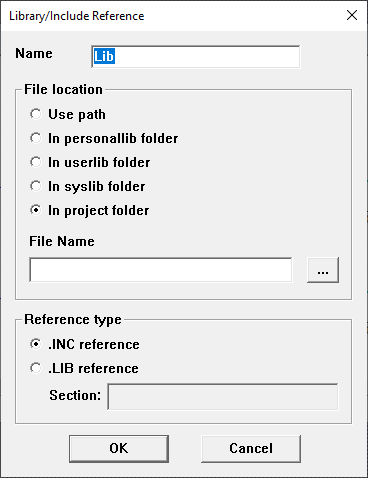
From the Project Manager window, expand the Project Tree and [Active Design Folder]. Then right-click Data and select Add Library/Include Reference to open the Library/Include Reference window.
-
Enter a name for the .inc file in the Name field.
-
From the File location area, choose the folder in which the .lib library file is stored (e.g., In project folder). If the library file is not in one of the default folders, choose Use path and complete steps a-b. Otherwise, skip to step 3.
Note:When In project folder is selected, references to the file in the design are relative to the directory where the project is saved (e.g., the path is saved in the project .adsn file as a variable: .inc '$PROJECTDIR/x_113854.inc'). The variable $PROJECTDIR is expanded to the current location of the project when the design is converted to a netlist and run by an analysis tool. Otherwise, an absolute path is saved. If a project and its include files are moved to a new directory together, select In project folder to preserve the file references.
Note:In syslib folder is reserved for libraries supplied with Electronics Desktop.
Click the [...] button to open an explorer window. Then navigate to and select the chosen .inc include file.
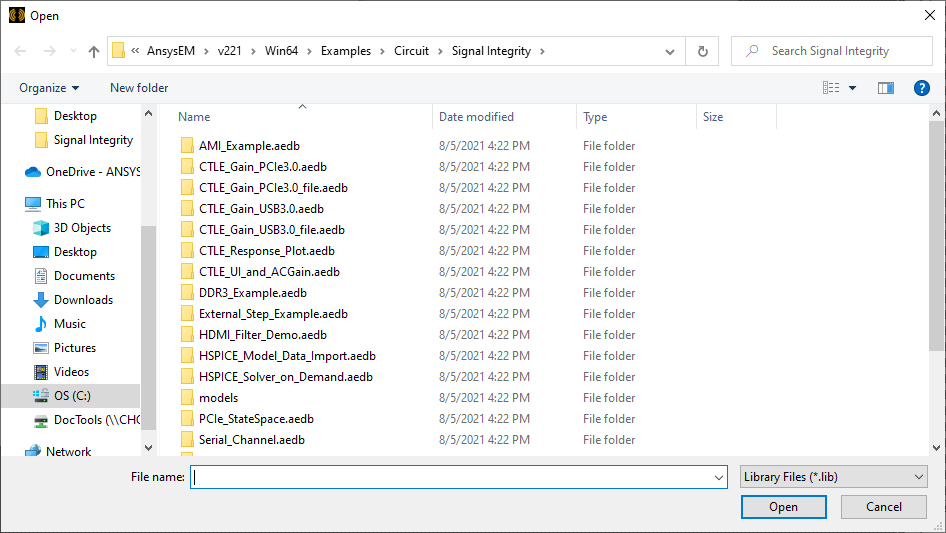
Click Open to return to the Library/Include Reference window. The path to the .inc file is displayed in the File Name field.
Note: Directories accessed with Use Path are not exported if the design is moved to another computer, and will be inaccessible.
-
Ensure .INC reference is chosen in the Reference type area (the default). The Section field will remain blank/deactivated.
-
Click OK to add the library file data to the design.
The procedure is complete.