


Add a one-liner that starts with an action verb to describe what the object does. More information about the object follows this one-liner if necessary.
Add a screen capture of the tree with the object highlighted so that the details are visible. To shorten the image, collapse (fold up) other objects in the tree that are not relevant to the object.
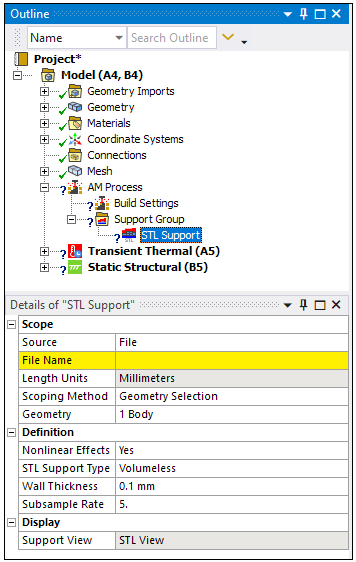 |
Object Properties
In the object properties table, list the categories (property groupings) on the left and their properties on the right.
For each property, write a tooltip-like definition for it. It can be longer than a tooltip because space is not limited, but strive to make it concise. Give the relevant or necessary information clearly and in a few words; be brief but comprehensive. Include units, valid ranges, default, and conditions when the field is not supported (such as: "Not supported when Formulation = MPC or Normal Lagrange.")
For Numerical fields: Simply define the term. Do not start with a verb. Provide an example for clarification where needed.
For Yes/No fields: Begin with a verb (Refine something, Apply something, Add something, etc.)
Example: Calculate Time History: Specify whether results are time dependent. Set to Yes to see a layer-by-layer animated build but this takes extra time to solve.
For Drop-down list fields: Begin with a verb. Use based on, or by criteria, or either this or that…
Example: Physics Preference: Set global default meshing behaviors based on physics type.
Example: Display Style: Color mesh elements by criteria, such as Element Quality or Aspect Ratio.
For Read-only fields: Begin with "Displays the …"
Example: Transformation Configuration: Displays the transformed coordinate point locations from the origin.
| Category | Properties/Options/Descriptions |
|---|---|
|
Machine Settings |
Beam Power: The power setting for the laser in the machine. Must be between 50 and 700 Watts. The recommended range is between 50 and 500 Watts. Layer Rotation Angle: The angle at which the major scan vector orientation changes from layer to layer. It is commonly 67 degrees. Must be between 0 and 180°. Deposition Thickness: The thickness of added powder material in every pass of the recoater blade. Specifically, use the amount the base plate drops between layers. For Thermal Strain strain definition, must be between 10 and 100 microns. |
|
Advanced |
|
When writing property descriptions, consider the following guidelines:
Don't use "the user"
Correct: Element Order: Set global element order, either Linear or Quadratic. You can also set this per body in Method controls.
Incorrect: Element Order: Set global element order, either Linear or Quadratic. The user can also set this per body in Method controls
Buttons, checkboxes, and dialog boxes
Avoid talking about UI elements. Describe what the input is or what the user needs to do. When you must refer to a button, checkbox, or dialog box, use bold formatting for the name. Don't include the type of UI element, such as button or checkbox, unless including it adds needed clarity. When you must refer to a dialog box, use dialog. Don't use pop-up window, dialog box, or dialogue box. (from Microsoft Style Guide)
Tree Dependencies
Indicate the parent of this object and all applicable child objects.
Insertion Methods
List all the possible ways the object can be inserted into the tree, including automatic insertions as a result of other actions.
Right-click Options
List the right-click options relevant to this object. Relevant means unique or unusual for this object in an engineering context.
There will be a sentence that says: "In addition to common right-click options, relevant right-click options for this object include:" with a link to the common right-click options (Copy, Cut, Delete, Rename, Group, etc.). No need to list these common options.
API Reference
See the _______________ section of the ACT API Reference Guide for specific scripting information.
Additional Related Information
List documentation sections from the Mechanical User's Guide for additional information about this object.