


The user interface launcher works by creating a server configuration file inside of the Ansys Dynamic Reporting database directory named nexus.conf. This tool allows you to interactively edit this file and then launch a server using the information stored in the configuration file.
Running the Launcher
To run the user interface launcher
Open a command prompt/shell, and navigate to C:\Program Files\ANSYS Inc\v251\CEI\bin\ on Windows or /ansys_inc/v251/CEI/bin/ on Linux.
Type
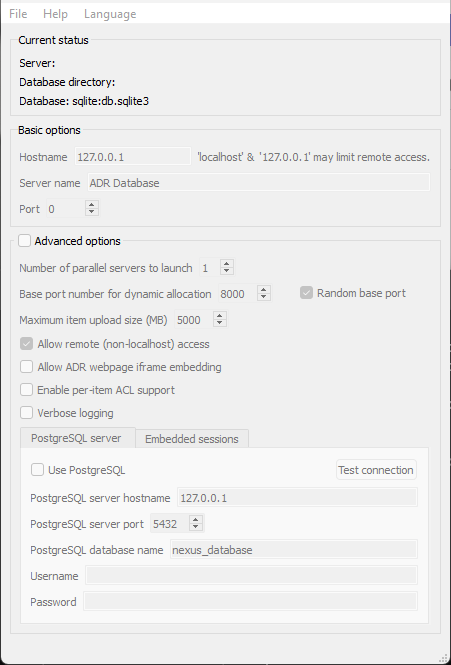
adr_launcher.The following dialog is displayed.
Selecting a Database to Configure
After opening the launcher, select the database whose configuration you want to edit.
If you do not already have a database created, from the menu bar select > .
To select the database configuration, from the menu bar select > .
The dialog is updated to reflect the target database.
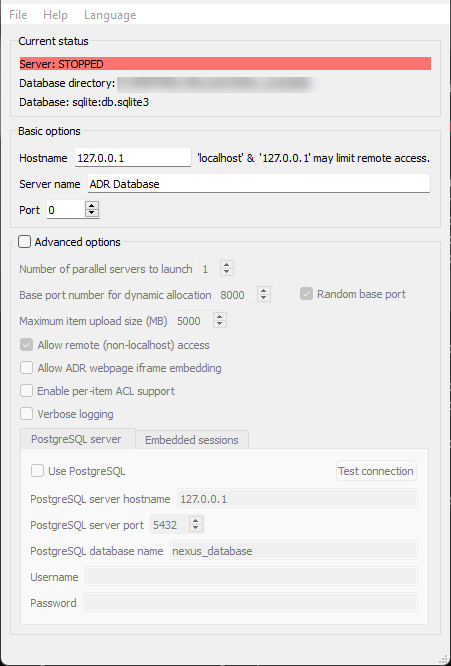
The current status of the server (if any) is displayed at the top of the dialog. Once a database is selected, you can edit the various configuration options. Common options are always available. Select the Advanced options check box for more settings.
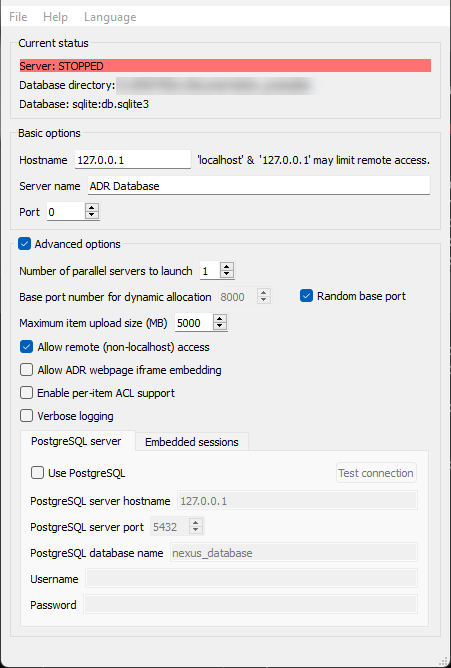
Tabs are provided for the PostgreSQL and embedded remote session options. To enable a remote session, on the Embedded sessions tab, select the Enable external session support check box.

Specific features of each option are described in more detail in Ansys Dynamic Reporting Launcher Command Line.
To save the configuration settings, from the menu bar select > .
Launch the Server
To launch server, from the menu bar select > .
The application launches a server and then presents the following dialog:
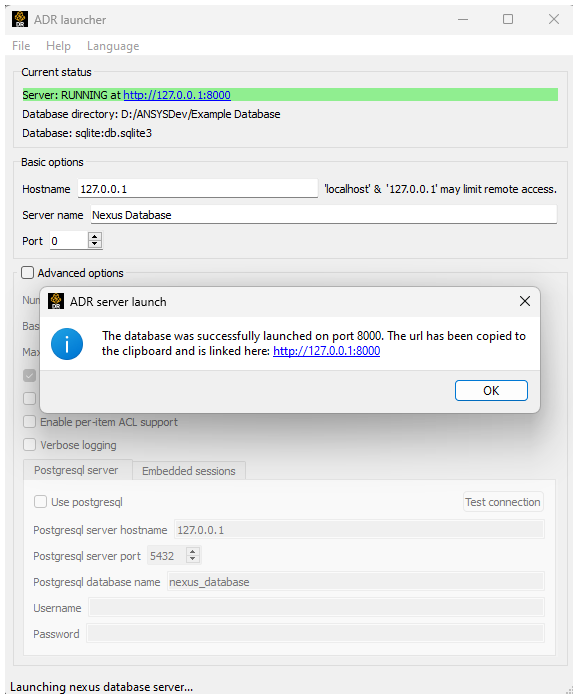
Clicking the dialog link opens the server in a browser window. The server status is updated, along with the URL for the server. The File menu option to shut down the server is now available.
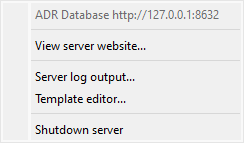
If your desktop supports it, an icon is placed in your system tray and you can control the server from the system tray menu as well.
From the File menu, you can also review any server log output (if the Verbose option is checked in the configuration), view the website in a browser and launch the Ansys Dynamic Reporting template editor on the database.