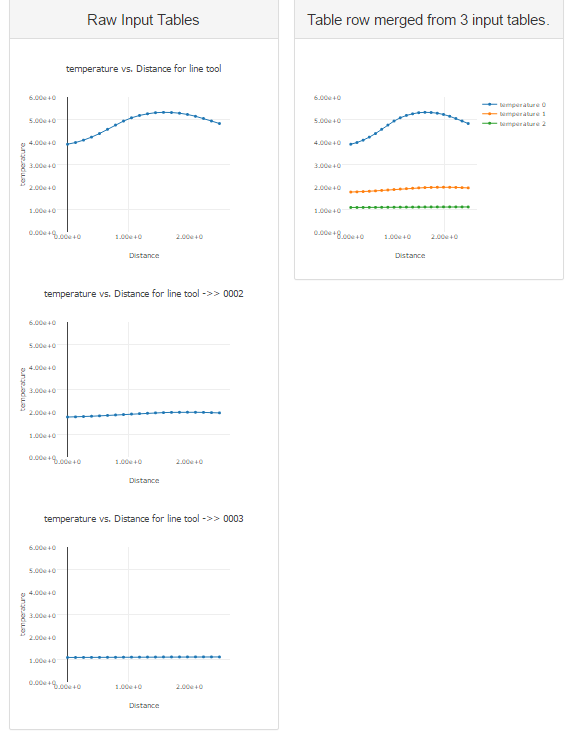
The Table Merge generator takes multiple input data table items and combines them into a single table. The merging process can be customized to select specific rows to merge. The operation has a number of options that make it possible to fold data from multiple data items into individual rows. Unlike many other generators, the merge generator produces a single output table data item every time it is passed a list of input data items. If there are no table data items in the input list, no output table is generated.
Configuration Options
The configuration options for this generator are relatively complex. A summary of the configured merge operation is presented in the template editor main window. For example:
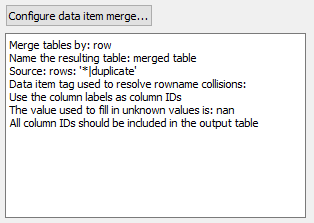
To open the settings editor, click .
The Table Merge Generator Configuration dialog is displayed.
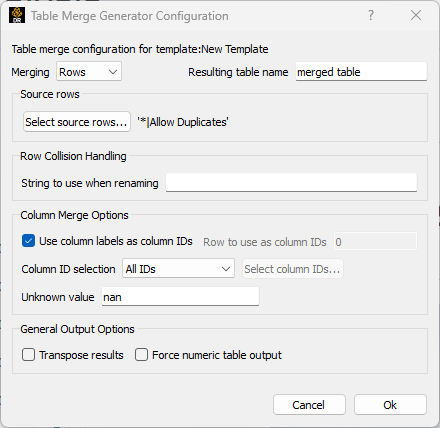
The default configuration is to simply concatenate all of the rows from all of the input tables into the output table. The resulting table will have the same number of rows as the sum of the numbers of rows in all of the input tables. The output columns will be the set of unique columns from the list of all of the columns in all of the input tables. When a row is selected for inclusion in the output (depending on the Source rows settings), the generator walks all of the columns in the selected row. The column itself may be selected or not depending on the Column Merge Options settings. If the column name already exists in the output table, the associated value in the selected row is placed in that column in the output. If the column name does not already exist, a new column is added to the output table. The undefined cells in the table are filled with the Unknown Value selection.
| Option | Description | |
|---|---|---|
| Merging | The merge process can be performed by row or column. If Rows merging is selected, the selection of portions of each input table is performed row by row. If Columns is selected, the operation is performed column by column. A column merge is just a row merge applied to the transpose of the input table, followed by a final transpose before output. | |
| Resulting table name | Sets the name for the generated
table(s). The table name can include macro expansions and uses the
current data item to access additional macro sources
(for example, tag values). The generated tables include a
generate_item_count=N tag that is the number of input
table data items used to build the output table. | |
| Select source rows | Opens a dialog, allowing you to define the row selection rules. 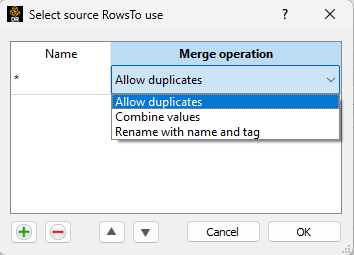 In the Name column, enter the name of the row(s) to be selected. The name can be the row index (a number), the row label name or a row label name that contains a glob style wildcard. In the Merge operation column, select a merge option that triggers when a row is selected for merging with the same name as an existing row:
| |
| String to use when renaming |
Specifies the final row name. Enter any string and add the
name of the tag to use in between the | |
| Tag | Value | |
_index_ | Index number of the input table that produced the row (0 based) | |
_guid_ | GUID of the input table item | |
_name_ | Name field of the input table item | |
_source_ | Source field of the input table item | |
_rowname_ | Original name of the row | |
|
So for example, if two rows come from items that have tags: Item 1: dp=dp0 SimulationA Item 2: dp=dp1 SimulationB the following value in the String to use when renaming field: New name is {{dp}} for {{Simulation*}}
Results in merged rows named: New name is dp0 for SimulationA New name is dp1 for SimulationB | ||
| Use column labels as column IDs |
When selected, input table column labels are used as column IDs. If the input table has no column labels, the column names are the index of the column. When cleared, the values in any row can be used as the column IDs. Enter the row number or row label name in the Row to use as column IDs field. | |
| Column ID selection |
Sets what column IDS are merged. Options are:
| |
| Unknown value | Fills in empty table cells that might be introduced by merging rows from two tables that do not have common columns. The Not a Number (NaN) value is mapped to floating point NaN in numeric tables. This can be useful when merging data for plots that do not have the same X axis values as NaN values are skipped when selected for plotting. | |
| Transpose results | When selected, the final table is transposed before being placed in the output stream. | |
| Force numeric table output | When selected, the output table is output as a table of numbers. The merge operation preserves the cell type of the input tables where possible. If any string tables are encountered, the output is a string table. | |
Example
A more complex, but common example is illustrated here. This example contains a collection of tables that represent template versus distance plots at three locations in a dataset. The aim is to put these three traces on a single plot. This is done by exploiting many of the core features of the table merge generator. The template layout used looks like this:
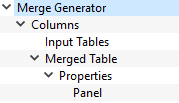
Merge Generator selects the three input tables to use. Columns is a simple two column layout so that the inputs and output can be displayed side by side. Input Tables is a simple Panel layout that is used to display the three input tables as plots. The Merged Table template is an instance of the Table Merge generator. It is configured as shown/discussed below. The Properties layout is an instance of the Tag Properties layout that makes the tags on the generated table available as properties for table layout/display. Panel is a simple panel layout with the custom HTML header set to:
<h2>Table row merged from {{generator_item_count|floatformat}} input tables.</h2>**The generator layout adds a generator_item_count=N tag to all of the
tables it outputs. This is the number of table data items used as the input to this
output table. The Tag Properties layout made it available for use in the HTML
header.
The generator configuration specifics look like this:
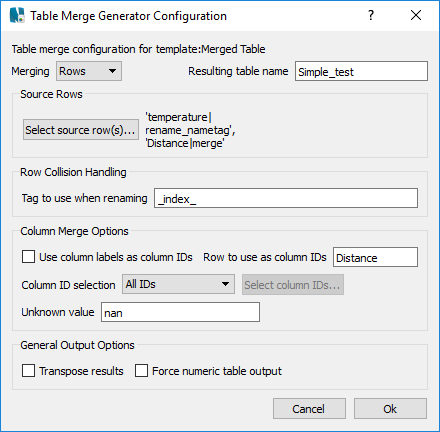
Two sources are selected. All rows with the name temperature are to be merged and they should be renamed by adding the value of the tag to the input row name. In this case the tag is_index_. All the rows with the name Distance are also included and they should be merged into a single row. Assuming each input table has a single temperature and a single Distance row, the output will include three temperature+_index_ named rows and a single Distance row. In the column options, the Distance row has been selected to be used as the column IDs, so the final Distance row has all of the unique values in all three Distance input rows. The implication here is that there will be empty cells in the output table, then the Distance values are not in common between the source tables. In this case, that is ideal as it preserves the desired X vs Y plots and allows for a common X axis named Distance to be used for all of the Y rows.
When run, the reports looks like this: