


Prerequisites
Java Prerequisites (Windows)
For all ModelCenter software, users are required to download and install Java separately in order to use the software.
- Java 8 support is deprecated and is no longer recommended for use in production environments.
- 64-bit Java 11 LTS and Java 17 LTS are fully supported.
- 64-bit Java 21 LTS is currently in Beta support. Use is permitted but should be approached with caution in critical environments.
The ModelCenter software installers will ask for either a JDK or a JRE directory. If one has been previously installed, it will automatically show up in the Choose Java directory list. If no JDK or JRE has been previously installed, it can be done mid-install. To refresh the list, simply click the refresh button represented by the circular arrows.
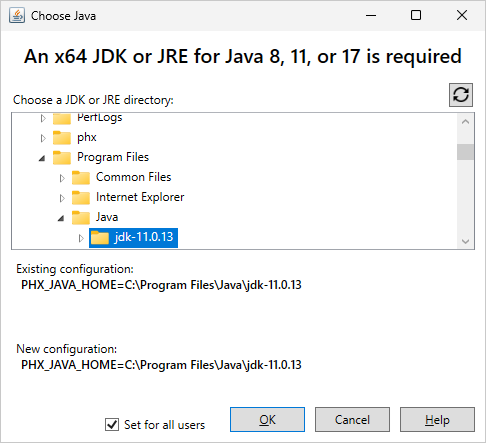
- The Choose Java dialog sets the
PHX_JAVA_HOMEenvironment variable only. To set the other Java/JRE variables (PHX_JRE_HOME,JRE_HOME, andJAVA_HOME), you must set them through the Windows interface. - When ModelCenter looks for a Java reference, it checks the variables in the default
order:
PHX_JRE_HOME>PHX_JAVA_HOME>JRE_HOME>JAVA_HOME. The first valid configuration is used. Variables pointing to invalid locations are skipped.
Java Prerequisites (Linux)
For all ModelCenter software, users are required to download and install Java separately in order to use the software.
- Java 8 support is deprecated and is no longer recommended for use in production environments.
- 64-bit Java 11 LTS and Java 17 LTS are fully supported.
- 64-bit Java 21 LTS is currently in Beta support. Use is permitted but should be approached with caution in critical environments.
- Copy the installer to the Linux machine.
- Put the file in its own directory.
- Start a terminal (or log in via PuTTY).
- Change directory to the java file's directory.
- Unzip the java file.
- Untar the java file.
- In a text editor, open the user's .bashrc file.
- Add the following two lines to the
file:
export JAVA_HOME="/home/staff/<username>/java/jdk-11.0.15"
export PATH=$PATH:$JAVA_HOME/bin
where
<username>is replaced with the appropriate information. Replace the Java version with the correct information, as well.When ModelCenter looks for a Java reference, it checks the variables in the default order:
PHX_JRE_HOME>PHX_JAVA_HOME>JRE_HOME>JAVA_HOME. The first valid configuration is used. Variables pointing to invalid locations are skipped. - Save the file.
- Close the terminal.
Python Prerequisite
For ModelCenter software, Python must be downloaded and installed in order to use Python within ModelCenter.
There are differences between legacy Python 2.x and the new Python 3.x which mean that code written in legacy Python may not function as expected if run with Python 3.x. Code should be tested or converted before using. See the following link for more information: https://wiki.python.org/moin/Python2orPython3 "Should I use Python 2 or 3 for my development activity?"
User-Specified Python support requires the installation of Python packages
thrift and six.
The following examples assume Windows OS and that the pip package
manager is installed and associated with the version of Python you wish to use.
thrift, and six and for instructions on
installation. Once the software and packages are installed, proceed to the
Configuration section below.Typical Installation
- From a command line, enter:
orpip install thriftpy -m pip install thrift - Enter:
orpip install sixpy -m pip install six
Custom Package Installation Location
- From a command line, enter:
You can also usepip install --install-option="--prefix=$PREFIX_PATH" thrift--ignore-installedto force all dependencies to be reinstalled using this new prefix. - From a command line, enter:
You can also usepip install --install-option="--prefix=$PREFIX_PATH" six--ignore-installedto force all dependencies to be reinstalled using this new prefix.
Configuration
ModelCenter Remote Execution configuration supports setting the fully qualified path to the Python executable, the search path for module files, and the directory for the standard Python library
Set these values with the following steps:
- Launch ModelCenter Remote Execution.
- Click the Configure button.
- Click the Directories link in the sidebar.
- Scroll to the bottom of the page to the 3 Python fields:
pythonExe- optional:
pythonHome(PYTHONHOME reference) - optional:
pythonPath(PYTHONPATH reference)
- Enter the information for each field. (Click the field name to see a description of each.)