


Behavior Execution Engine (BEE) Plug-In Installation
Install Behavior Execution Engine
- Install ModelCenter Remote Execution and ModelCenter.
- Install MagicDraw/Cameo 2019 or later.
- Download the Behavior Execution Engine .zip file from the AGI website.
- Extract the file.
- Run the setup.exe file.
On the Welcome screen, click the Next button.
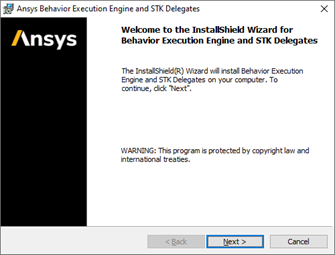
On the License Agreement screen, select the "I accept" option and then click the Next button.

On the Install Type screen, select the type of installation and then click the Next button.

On the Destination Folder screen, click the Change button to set a new destination folder, if desired, and then click the Next button.

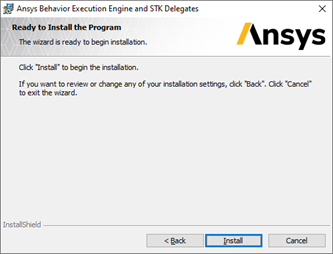
On the Ready to Install the Program screen, click the Install button.
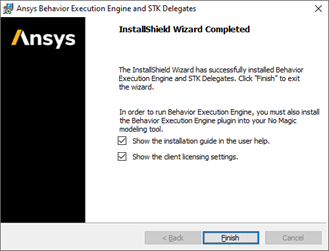
After Behavior Execution Engine has installed, the InstallShield Wizard Completed screen displays. Click the Finish button.
Install the BEE Plug-In
- Start MagicDraw/Cameo.
From MagicDraw/Cameo, select the Help > Resource/Plugin Manager option. The Resource/Plugin Manager dialog opens.

- Click the Import button.
A file select dialog will open. Select the file in the <BEEInstallDir>/plugin folder that matches your MagicDraw/Cameo version.
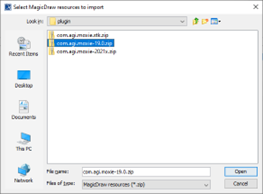
If the com.agi.moxie.stk.zip folder is available, select that as well.
Click the Open button. The plugin will be installed.
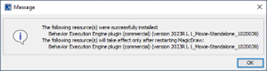
- Restart MagicDraw/Cameo.
- Open the Behavior Execution Engine Client Licensing Settings application from the Start menu. Set up the license server information for BEE.