


Impersonation
Users who are members of the MI Administrator or MI Grant system security role can 'impersonate' a user with a different (less privileged) system or database security role for testing purposes.
While you are impersonating a role, you can access only the MI Viewer features and data available to users who are members of that role.
Impersonation tools are accessed from Settings > Impersonation:
- On the toolbar, click Settings and then click the Impersonation tab.
- Under System user roles to impersonate, select the role: Read, Write, Grant, Power User, or Admin. Users in the Admin or Grant roles can see all data in the database.
- Under Database user roles to impersonate, select a database and a database security group, if implemented in the selected database.
- For Read or Write users, you can specify the required access control permissions by selecting/clearing the check boxes.
- Click Perform Impersonation.
Your new system and database roles are shown under the heading The output from the "Who Am I" page.
You can now use MI Viewer with the access restrictions that you have specified. A warning is displayed at the top of the main page to remind you that you are working in "impersonation mode" and operating with restricted privileges, for example:
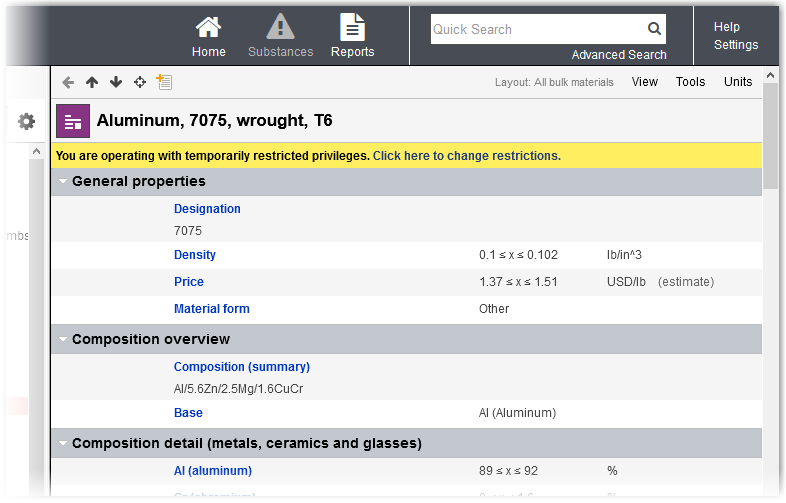
To restore your normal Granta MI privileges
- Click the Click here to change restrictions link in the warning displayed
at the top of the main page in MI Viewer to open the Impersonation page again,
for example:
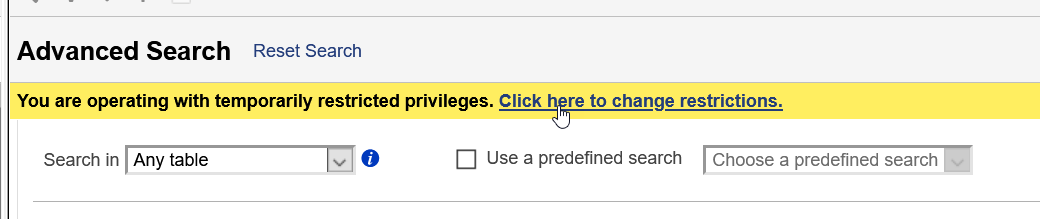
- Click Stop Impersonation.