


MI Materials Gateway for CAD users
Granta MI Materials Gateway is embedded within NX or Creo to give you access to Granta materials data. You can search for preferred materials, view favorites, and assign materials to your part model.
Here's a quick guide to the features available:
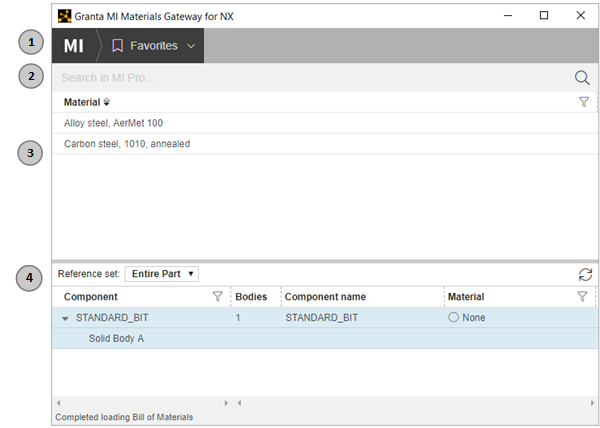
- Run an advanced search, or view favorites. You can also view Help (opens in a separate browser window) and update your settings for the Gateway app.
- Search for a material by name.
- Select materials to assign.
- In the lower half of the window, you can view your assignments and export them for CAE simulation.
Starting Gateway from your CAD application
When working in NX or Creo, you can open a Gateway window in two alternative ways. These two ways of starting Gateway give you slightly different features. You can switch between them at any time.
Opening Gateway by right-clicking on selected components in your CAD application is the quickest way to assign materials. However, you'll need to view the full assembly if you want to export assignments for CAE analysis.
Open a Gateway window for selected parts in Creo
You can do this from the Model Tree or the model geometry in Creo. Your selection can contain any number of parts and/or bodies. If you select a body, Gateway will display its parent part.
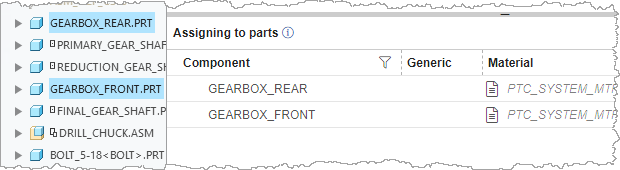
Right-click your selection, and choose MI Materials Gateway. The parts will be shown as a list in the Assignments panel.
- If Creo is configured to assign materials to parts, only the
parts will be shown.
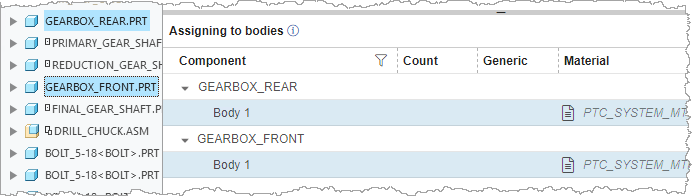
- If Creo is configured to assign materials to bodies, the bodies in each part
will also be shown.
To change your part selection, select your new items in Creo,
and click Refresh  .
.
Open a Gateway window for selected parts, bodies, or features in NX
You can do this from the Part Navigator, the Assembly Navigator, or the model geometry in NX. Your selection can contain any number of sub-assemblies, parts, bodies, or features such as edges and faces.
Right-click your selection, and choose MI Materials Gateway.
The parts and bodies in your selection will be shown as a list in the assignments panel.
Click a part to view its bodies. 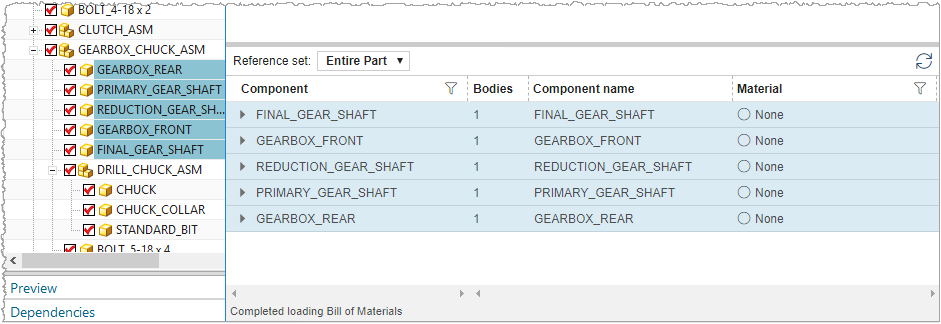
To change the components displayed in Gateway, select your new
items in NX, and click Refresh in the title bar of the
assignments panel.
View your full assembly in Gateway (in Creo or NX)
In the main NX or Creo toolbar, on the MI Materials Gateway ribbon, select MI Materials Gateway.
Your current assembly (Creo) or work part (NX) will be loaded into Gateway, and shown as a structured Bill of Materials (BoM) in the Assignments panel.
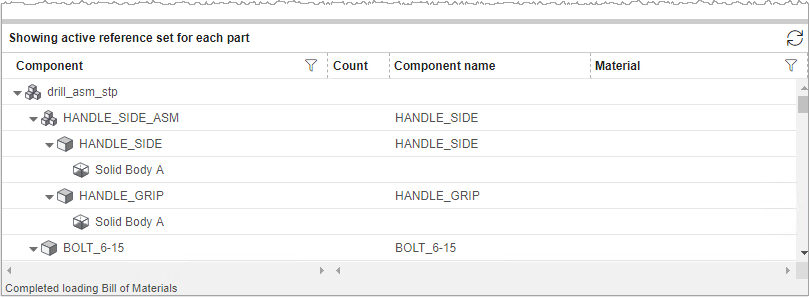
If you change to a different work part or assembly in your CAD application, the Assignments panel updates automatically.
As well as assigning materials, you can export assignments for CAE analysis when viewing the full assembly.
About NX reference sets in Gateway
If reference sets have been defined in your NX system, these are used to filter the bodies that are shown in the Assignments panel.
- When you are viewing your current work part as an assembly (that is, when Gateway has been opened from the NX toolbar), Gateway uses the reference set that is currently active for each part in NX to filter the bodies for each part individually.
When you are viewing a selection of parts (that is, when Gateway has been opened by right-clicking in NX), you can choose a reference set to view in Gateway.
Click the Reference set list at the top of the assignments panel to choose a reference set that will be used to filter bodies for all parts.