Defining custom email templates
User Manager auto-generated emails have a standard format. If you prefer, you can define custom content and format for these emails.
For example, you may wish to include links and relevant contact information for your organization.
Custom templates for User Manager emails are defined JSON format, and stored in the MI Settings application. If custom email template content is defined in the Settings application, User Manager notification emails will use this instead of the default notification content.
The required Subject and Body content must be defined as follows, enclosed in braces {}:
{
   "Subject": "<email subject content>",
   "Body": "<email subject content>"
}
The content may include HTML text formatting markup, for example, <br/> for line breaks. Username, password, and a link to your User Manager web application, may be inserted when the email is generated using this syntax:
{{username}}{{password}}{{usermanagerUrl}}
- In a browser, open the MI Settings application, and click the User Manager option on the Settings home page.
- Edit the New account notification email template field to define the template content for emails sent to new users after their Granta MI user account is created in User Manager.
- Edit the Password change notification email template field to define the template content for emails sent to users when their Granta MI password has been changed in User Manager.
- Save your changes.
Example:
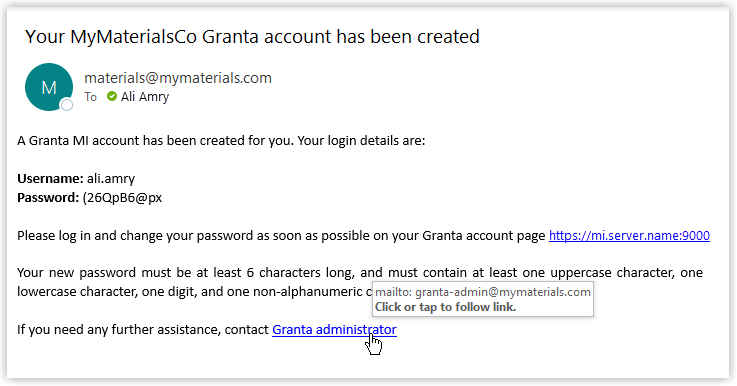
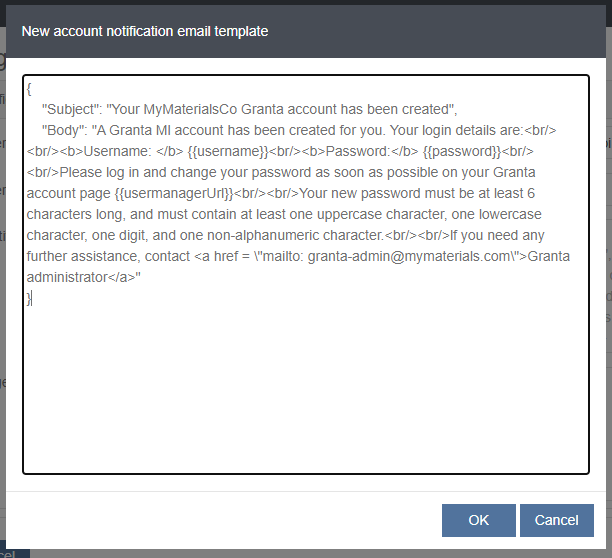
This example shows a new account notification where the Body content will include the user's login credentials, a link to the User Manager application so that they can easily reset their password, some information about password requirements, and an email link to the organization's Granta MI Data Administrator for any additional support.
Example of an email produced using this notification template: