


Downloading an RDP File for Quick Connections to a Virtual Desktop
When you connect to a virtual desktop using the Connect button, an executable (.exe) file is created and downloaded to your local computer. When you open this file, the remote desktop is launched. The .exe file is then removed from your file system and cannot be used again.
If you would like to be able to connect to the same virtual desktop in future sessions without having to sign in to Ansys Access on Microsoft Azure, you can download an RDP file for this purpose. An RDP file is a Remote Desktop connection settings file. RDP files are used by the Remote Desktop Connection service in Windows to connect to virtual desktops.
Once an RDP file has been downloaded to your local computer, you can open it from your file system at any time to connect to the virtual desktop and launch a remote desktop session (provided that the state of the virtual desktop is 'Running').
To download an RDP connection file for a virtual desktop:
-
Open the project space that contains the virtual desktop for which you want to obtain a connection file.
-
Ensure that the virtual desktop is in the Running state. If it is not running, start it.
In the resource table row, click
 and select Download RDP file. A
connection.rdp file is downloaded to the default download location
on your computer.
and select Download RDP file. A
connection.rdp file is downloaded to the default download location
on your computer.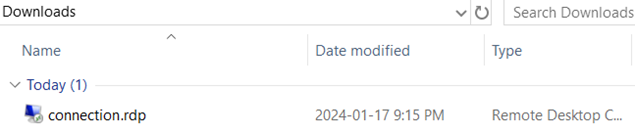 Note: The Download RDP file option is only available for Windows virtual desktops or Linux virtual desktops with KDE or GNOME Desktop installed.
To launch a virtual desktop session, simply double-click the connection.rdp file.